
This article provides a step-by-step guide as to how a Writer user can quickly and easily write a suitability report recommending the purchase of structured investment product.
1) Select or add the client
From the Genovo main dashboard, go to Write report and select or create the private client(s) you wish to write the report to. If your Genovo account is integrated with your back office system, remember that you can import the client, rather than adding them manually, by clicking the add from CRM button.
2) Select the Report Creation Method
In the interests of completeness, this article walks you through the steps of building the report using Genovo’s 'from scratch' report creation method. There are other report creation methods available, designed to fast-track you through one or more of the steps below and make the report building process even easier.
3) Create the report
In Report Details, give the report a name and select the Report Type - we'd suggest using the Suitability Report.
4) Add the required sections
You’ll now need to add the necessary sections from the 'Available sections' drop down, which in this instance will only be the New Investment Recommendation section.
The Recommended Investment Strategy section is not required, as the investment element for a structured product is implicit within the product itself.
5) Complete all section wizards
Next you'll need to step through the section wizards of all sections that require your input, starting with the Introduction section.
5.1) Complete the Introduction section
Progress through the steps of the Introduction section in the usual way. When you reach the Client Objectives step you should select or add the advice option(s) that accurately reflect the client's objective(s) and add comprehensive Know Your Client (KYC) information to ensure you fulfil the regulator’s expectations of you in terms of documenting a client's objectives.
You can use and adapt one of the Genovo advice options, such as:
‘Invest £*INSERT* of the monies you currently hold on deposit for long term capital growth.’
Alternatively, as structured products are clearly a specialist plan with unique features and risks, you can add your own advice option if you prefer, or you can manually enter the client’s objectives by typing, pasting in external content, or even just speaking the objectives, by clicking the Add objectives as freetext button.
Once you’ve selected or created your client objectives, you can click on the Edit Objective / Add KYC info link to tweak the objective wording to suit the client’s actual objectives and to add the ‘Know your client’ info – the ‘back story’ behind the clients’ investment needs.
5.2) Complete the Client Risk Profile section
It's in this section that you will confirm the client's attitude to risk and capacity for loss, as well as their knowledge and experience.
5.3) The New Investment Recommendation section
Simply follow the Wizard section steps in sequence:
5.3.1) Plan Summary
You now need to add the new structured investment product. If the new plan is already in your back office system, click the Add plans from CRM button, otherwise add the plan manually by clicking Add plan.
Structured products usually have names to reflect the type / version / series. There’s a dedicated field where you can enter the plan name:
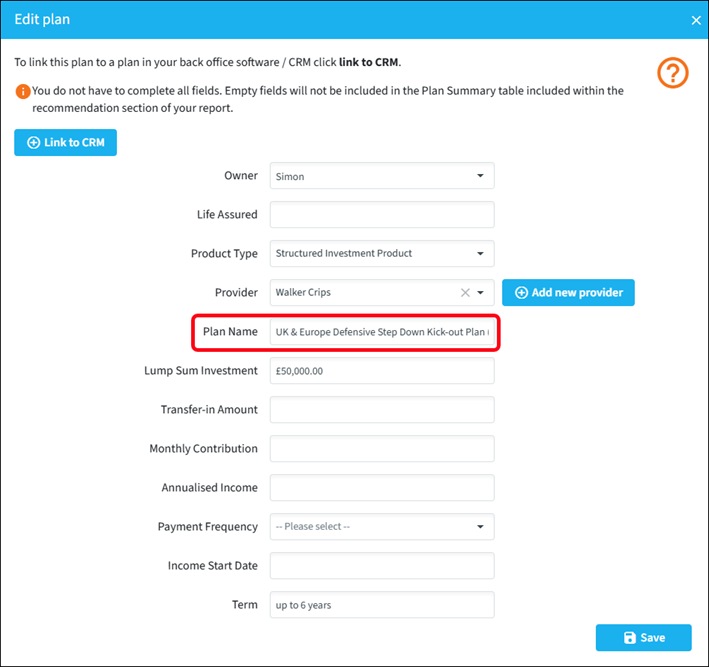
The Genovo provider library doesn’t currently have any structured product providers, so you’ll probably need to add your own. This Knowledge Base article explains how to do this.
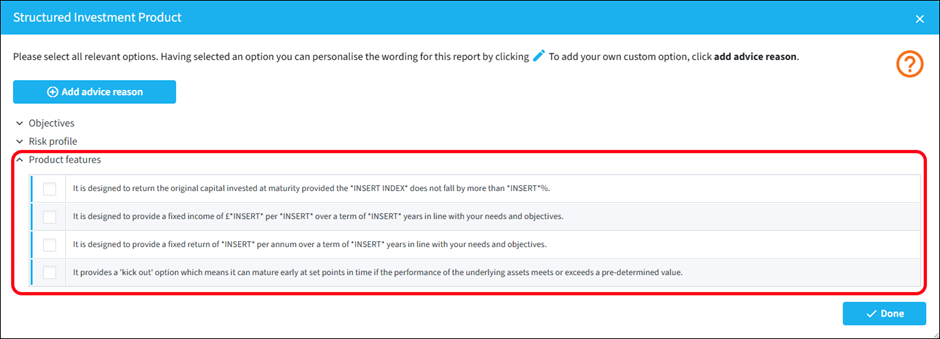
5.3.2) Why Product Type
There are some structured product specific advice options in the Product features category that you can select from (or of course, you can add your own):
5.3.3) Why Provider / Plan
Select from the standard advice options, or you can add your own.
5.3.4) Plan Charges
Add initial and/or recurring charges as appropriate. Clearly, there won’t be any explicit investment management charges, so you won’t enter anything in this column.
Plan charges tables in the report shows blank columns by default, but if you don’t want this, there’s a setting where you can elect to have blank columns suppressed. This Knowledge Base article explains how to do this.
5.3.5) Trusts
If you’re writing the new plan into trust, you can select the trust on this step and then use the text box at the bottom of the page to explain why.
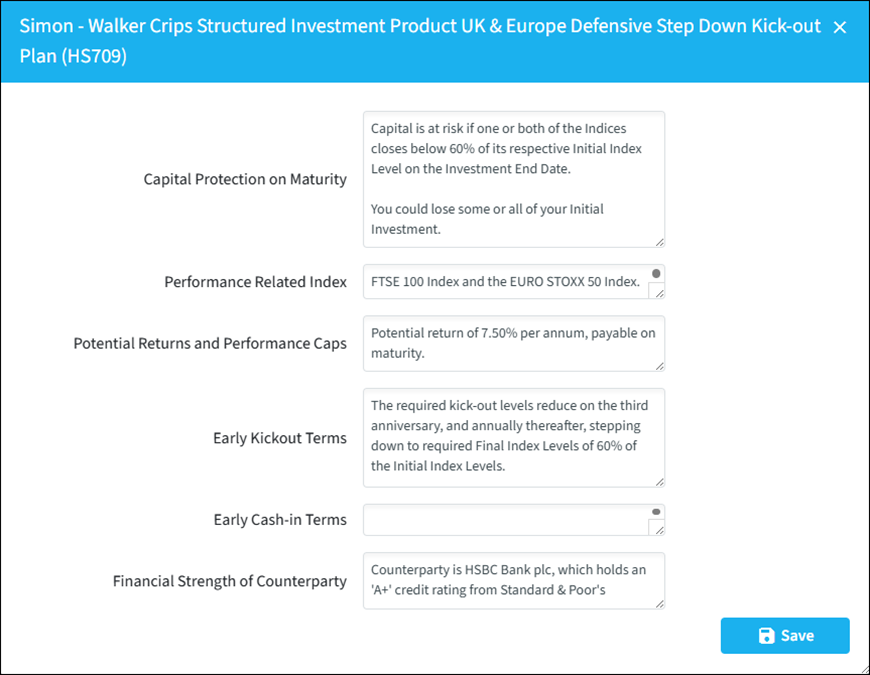
5.3.6) Structured Products
On this step, you can add further information regarding the terms and conditions of the structured product:
5.3.7) Key Disadvantages and Tax Implications
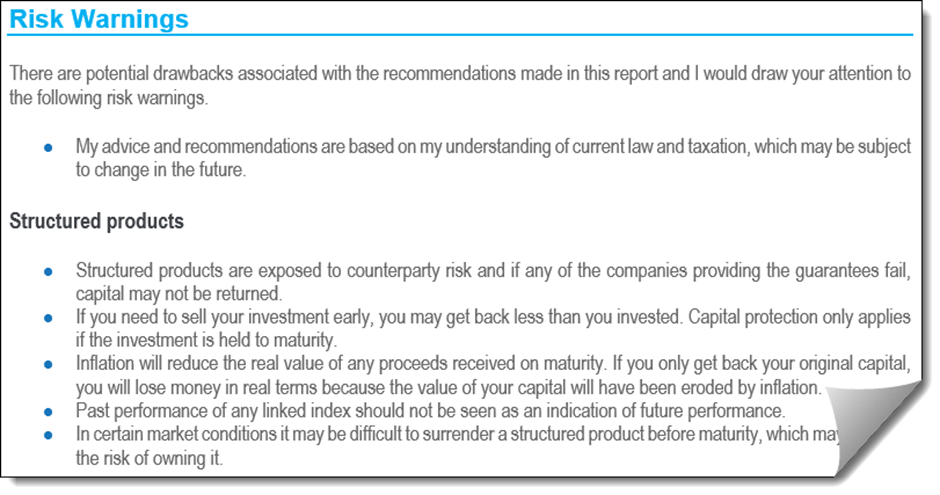
There’s a structured product specific advice option in the ‘Other’ category, but if there’s a specific disadvantage that needs covering, you can add your own.
Remember that in Genovo, disadvantages (will happen) are different to risks (could happen). Risk warnings suitable for structured products will be automatically included in your report, so you only need to focus on any disadvantages.
5.3.8) Other Solutions
This an optional step to record any other solutions that were considered, but discounted. If you don’t select any options, the 'Alternative Solutions' subsection won’t be included in your report.
5.4) The Important Information section
This is the last wizard section you'll need to complete and the steps are self-explanatory.
6) Tailor the structure of the report
Having completed all of the section wizards you should then tailor the structure of your report by unchecking any sections you do not wish to include in your report; and then change the sort order of any sections to reflect your personal preferences.
You’ll find more information about how to remove sections from your report here.
You'll find more information about how to reorder the sections in your report here.
7) Create and edit the report
Having created the framework of the report with 98%+ of the content already included as an initial draft in the Report Builder, both Writer and Reader users can then make any final tweaks to the content of the draft report in the Report Editor. To open and edit the report in the Report Editor click Create / Edit report.
Report template
Having created the report, you may then wish to convert it into a template and save it to your Report Template Library to use as a starting point for creating future reports.