
There are different thoughts and opinions surrounding the level of detail about a client’s circumstances that needs to be included in a suitability report.
As I’m sure you’re aware, COBS 9.4.7 dictates what, from a regulatory perspective, a suitability report must contain as a bare minimum.
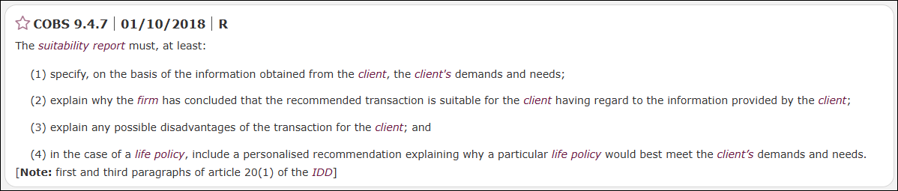
This can be summarised as follows:
- The client’s objectives
- Why the recommendation(s) are suitable
- Any disadvantages associated with the recommendations.
- Why the policy best meets the client’s needs
However, I would suggest that the FCA is being more than a little disingenuous here. For example, I’m pretty sure that a suitability report which didn’t contain any information about the client’s risk profile, costs and charges disclosure, associated risk warnings, or in the case of replacement business - a comparison of the recommended and ceding plan, would struggle to get past any compliance department or case-checker without them demanding remedial action!
One element that always seems to be more polarising than most is the area of client’s circumstances. So, let’s consider the different approaches….
1. The “full factfind in the report” approach
This approach advocates the inclusion of extensive detail about the client’s circumstances, often replicating much of the fact find within the suitability report.
Advantages
- Provides a strong audit trail within a single, standalone document.
- Perceived reassurance from a sense of “belt and braces” compliance which will help defend the advice in the event of a complaint.
- Useful where record-keeping elsewhere is weak.
Disadvantages
- Results in longer and arguably less engaging reports.
- Increases the risk of irrelevant or outdated information creeping in to the report.
- Can obscure the key message of the report i.e. the recommendation(s) and the reasons why they have been made.
- Duplicates information that the client already knows and is already recorded elsewhere.
2. The “relevant information only” approach
This is a more balanced approach that promotes only including information that is relevant to the recommendation(s), rather than everything known about the client. It recognises that the factfind exists separately and, from a compliance perspective at least, the report should be read in conjunction with the factfind.
Advantages
- Helps to control the length of the report making it more client-friendly and easier to read.
- Supports client understanding rather than record-dumping
- Helps to maintain focus on why the recommendation is suitable
- Reduces duplication
Disadvantages
- Requires judgement on what is “relevant”.
- Some compliance teams may worry about omission risk.
- Can be inconsistently applied across different paraplanners / advisers.
3. The “justification-focused” approach
This is a more minimalist approach that focuses on demonstrating suitability, not documenting everything known. It advocates only including the information strictly necessary to justify the recommendation, not to describe the client in detail.
Advantages
- Helps make the report highly engaging and readable.
- Provides a very clear advice narrative.
- Aligns with consumer duty (good client outcomes, understanding).
Disadvantages
- Seen as higher risk by some compliance teams
- Reliant on strong supporting records outside of the report
- If poorly executed, recommendations can appear insufficiently evidenced
Current direction of travel
The industry is clearly shifting away from the “everything included” model toward the middle ground and beyond. This has been driven by:
1. Consumer Duty
- Emphasis on consumer understanding and good outcomes.
- Long, dense reports are increasingly seen as poor practice.
2. FCA thematic feedback
- Focus is on:
- Clear objectives.
- Suitability of recommendation.
- Client understanding.
- Not on volume of background information.
3. Professional body guidance (e.g. PFS)
- Encourages:
- Clarity and relevance
- Avoiding unnecessary duplication
- Keeping reports client-centric
How does Genovo handle client circumstances?
Genovo has five report types. In the suitability report (intended for new clients, or existing clients where you’re dealing with new advice scenarios), a client circumstances table is automatically included by default. In all other report types, you’re given the choice.
The client circumstances table looks like this in a report:
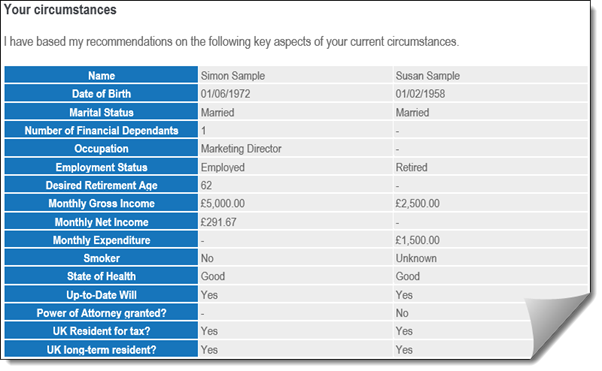
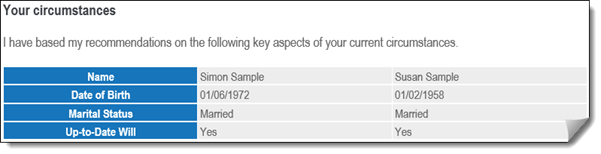
However, some of the standard fields included within the overview of the client’s circumstances will not be relevant to a particular case. If this is the case, just leave them blank and they will not be included in the client circumstances table in your report, for example:
So that’s how Genovo works, but what can you do if you want to work differently?
In recognition of the fact that there’s no definitive right or wrong, we’ve built flexibility into Genovo to allow you to configure it to your (or your compliance department’s) preferences.
Options for customising Genovo
Apologies in advance – this section is a bit technical, but I wanted to provide step-by-step instructions on how to achieve three really neat customisations.
1. I don’t want to include client circumstances content in any of my reports
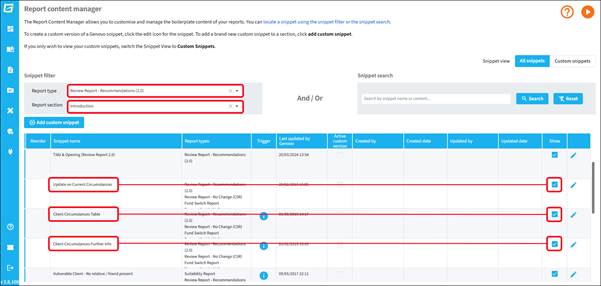
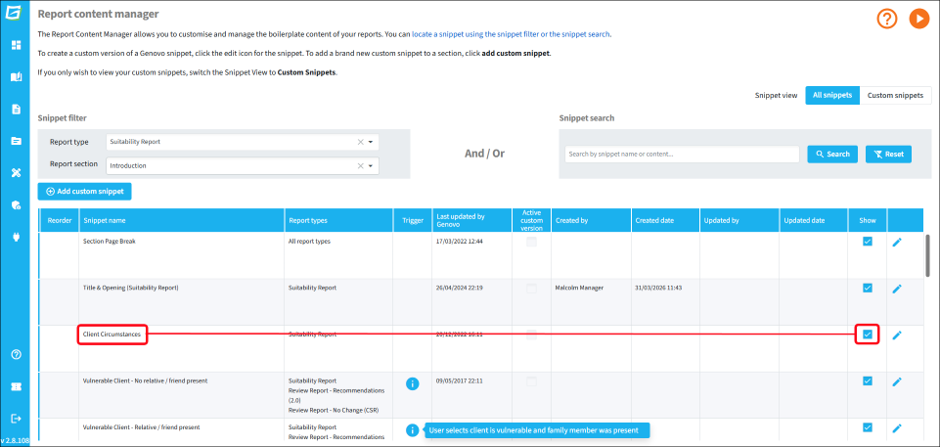
This is the easy option! To prevent any client circumstances content coming out in your reports, you simply need to hide the relevant snippets, using the Report Content Manager.
1.1. Select the Suitability Report type
1.2. Select the Introduction section
1.3. Hide the Client Circumstances snippet
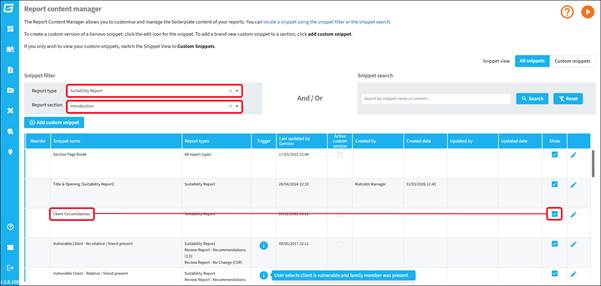
1.4. Now, select the Review Report – Recommendations (2.0) report type
1.5. Select the Introduction section
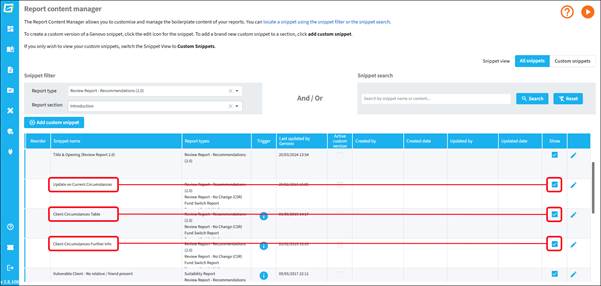
1.6. Hide the three Client Circumstances snippets:
2. I want to include client circumstances, but I want to show it in the appendix in all my reports
When you generate your report, the client circumstances information is automatically inserted in the main body of the report in the Introduction section under the title Your Circumstances. If you want to keep the client circumstances content but move it from the main body of the report and into the Appendix, this can be done using Genovo’s Report Content Manager.
Report Content Manager allows you to:
- Create customised versions of Genovo snippets
- Hide Genovo snippets
- Create your own custom snippets
This is what the Client Circumstances snippet looks like in the Suitability Report:
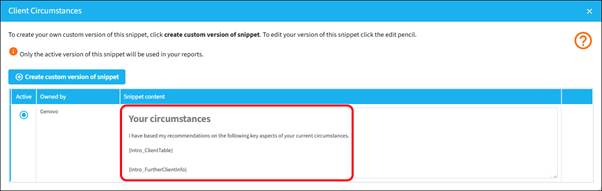
There’s some text (which you can customise if required). There’s also two report tags – these are ‘placeholders’ which are replaced by other content when the report is generated (in this case the client circumstances table and the content of the text box on the client circumstances step, but there are about 180 report tags in Genovo).
So – if you want to relocate the Client Circumstances snippet to the Appendix, there are four simple steps:
2.1. Copy the content of the Genovo snippet
2.2. Hide the Genovo snippet (very important to avoid duplication)
2.3. Create a custom snippet in the Appendix Title Page section
2.4. Paste the snippet content you just copied into the new custom snippet (making sure you add a page break first so that the client circumstances content doesn’t come out on the Appendix title page itself)
Rather than a collection of screenshots, I’ve recorded the process – it takes less than a minute:

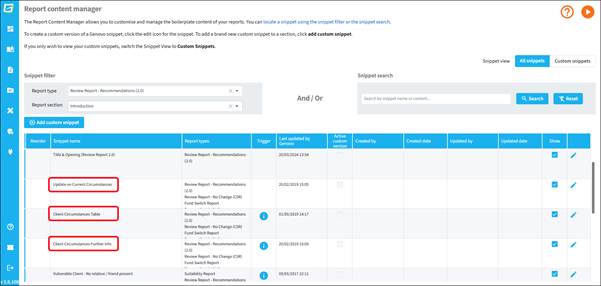
The video above is for the Suitability Report, which only has one Client Circumstances snippet. For all report types other than Suitability Report, there are three client circumstances snippets, so the process above would need to be repeated for each snippet.
3. I want the option to choose on a report-by-report basis whether to include the client circumstances
This is the middle option – it sits between too much and not enough and it allows advisers and/or paraplanners to make an informed decision on a report-by-report basis about whether showing the client circumstances table adds anything of value to the report.
This method requires access to Report Section Manager. If you don’t have access, get in touch.
3.1. Firstly, create two new custom report sections, one called Client Circumstances and another called Client Circumstances Update:
3.1.1. For the Client Circumstances section, apply it only to Suitability report.
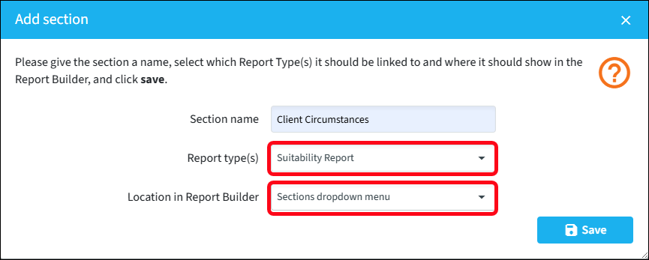
3.1.2 For the Client Circumstances Update section, apply it to the other four report types:
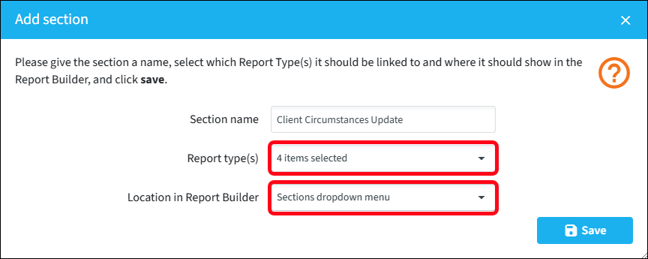
3.1.3. For both new sections, select “Sections dropdown menu” for the location
Note – your new report sections will show at the bottom of the list of sections.
3.2. Next, you need to use the Report Content Manager to edit / create snippets, re-using the content of the existing Genovo snippets. Let’s deal with the Suitability Report’s Client Circumstances first
3.2.1 Firstly, in Report Content Manager, select the Suitability Report type, locate the Genovo Client Circumstances snippet, which is in the Introduction section, and copy the content excluding the first row (you’ll see why in a couple of steps).
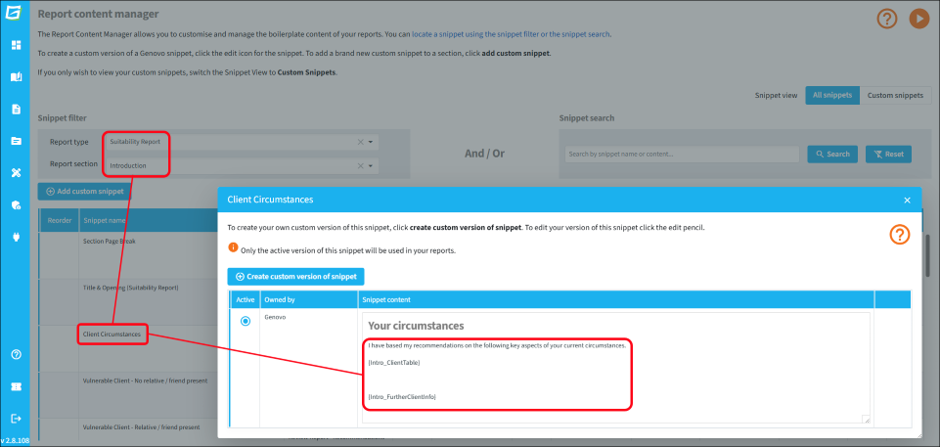
3.2.2. Next, select your newly created Client Circumstances report section from the dropdown list (it will be at the very bottom)
3.2.3. Next, click the edit pencil for the Title & Content snippet
3.2.4. Now, paste the content of the Genovo snippet over the **Insert new snippet content here** content. The snippet title is already included, hence the reason for not copying and pasting the entire Genovo snippet. Top Tip – when you paste, make sure you select ‘Plain text’ option in the pop-up window to avoid issues with formatting.
3.2.5 Save the snippet.
3.2.6. Finally for this section, go back to the Genovo Client Circumstances snippet in the Introduction section and hide it to prevent the content coming out twice in your report.
3.3. Now you need to deal with your new Client Circumstances Update section, which is a bit more involved, as Genovo uses three snippets, rather than one.
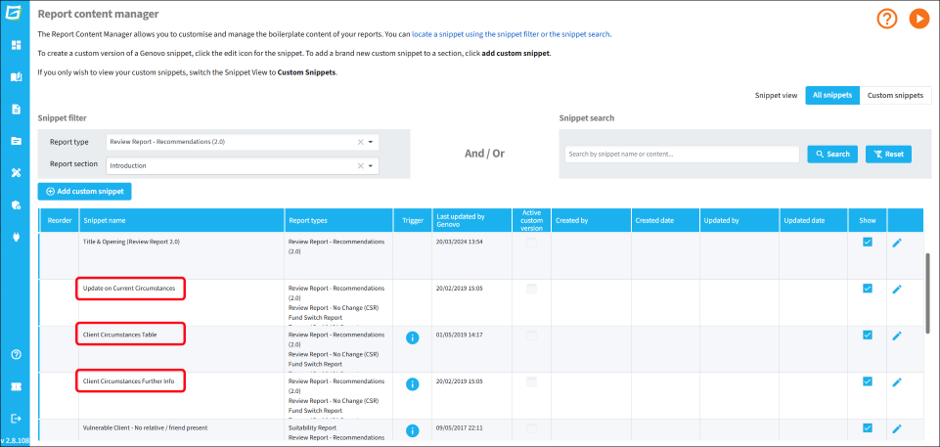
The simplest method is to combine all three Genovo snippets into one, as follows:
3.3.1. Still in Report Content Manager, change the report type to Review Report – Recommendations (2.0) and select your newly-created Client Circumstances Update report section from the dropdown list (it will be at the very bottom)
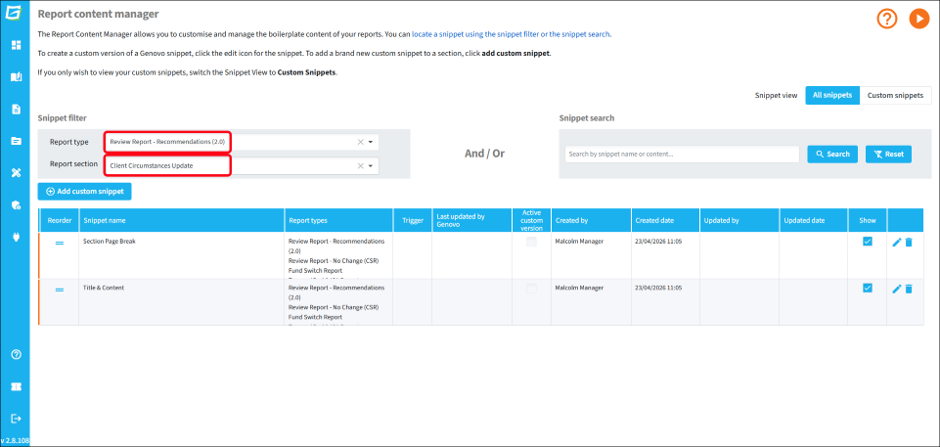
3.3.2. Next, click the edit pencil for the Title & Content snippet
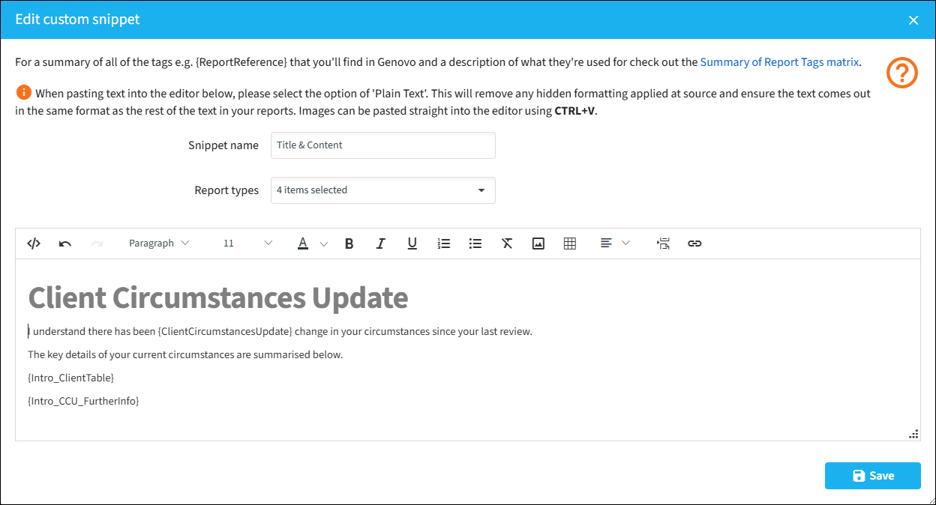
3.3.3. Next, to save time copying and pasting the three Genovo snippets, I’ve combined them for you – copy the following text:
I understand there has been {ClientCircumstancesUpdate} change in your circumstances since your last review.
The key details of your current circumstances are summarised below.
{Intro_ClientTable}
{Intro_CCU_FurtherInfo}
3.3.4. Now, paste the text you just copied after the **Insert new snippet content here** text – make sure you select ‘Plain text’ option in the pop-up window to avoid issues with formatting. Your snippet should now look like this:
3.3.5. And finally… go back to the orginal Genovo snippets in the Introduction section and hide them to prevent duplication.
Now, when your Writer users are building a report, if they want the client circumstances content to be included in the report, they’ll need to add the manually section into the report and move it to the desired location:

In summary, regardless of whether you’re in the “full factfind in the report” or the “justification-focussed” camp, or somewhere between, Genovo’s extensive customisation features can accommodate your requirements.