Many advice firms use model portfolios as part of their advice proposition. However, when a plan investing in a model portfolio is added into a back office / CRM system, the linked investment strategy will typically show as the underlying holdings that make up that model portfolio rather than the model portfolio that the holdings actually represent.
On importing a plan from a CRM into a review section in Genovo, the plan's linked investment strategy is automatically generated as a Current Investment Strategy (CIS). In the case of a model portfolio, this will automatically show as the underlying holdings and there is unfortunately nothing we can do to change this.
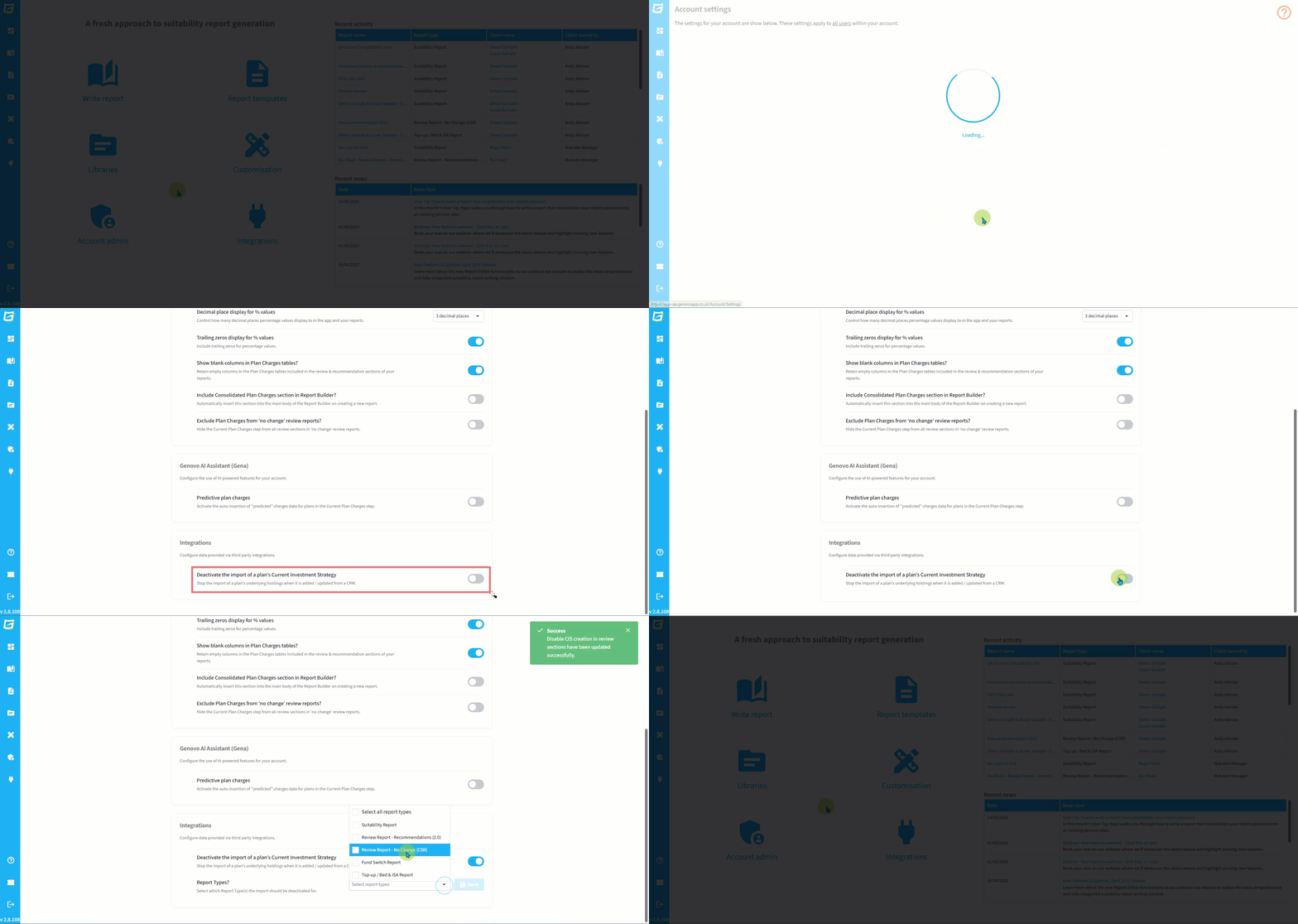
We are conscious that some Genovo users prefer to show the CIS as the model portfolio, which means they have to delete the CIS that's been created on import and manually replace it with a new CIS showing the model portfolio - typically added from their Investment Library. This process can prove unnecessarily time consuming, and hence we have a setting that allows Account Owners and Account Admins to deactivate the automatic import of a plan's CIS when the plan is added / updated from a CRM. This setting can be applied per Report Type.
To deactivate the import of a plan's holdings and the automatic creation of a CIS, select the toggle button under the 'Integrations' category in Account settings, accessed from the Account admin dashboard. Once the toggle is activated, you can then select the report type(s) this should apply to.