
As the name suggests, Genovo's Review Report - No Change report type is designed to be used when there has been no change in the client's investment objectives and you solely wish to confirm to the client the ongoing suitability of their existing plan(s) as part of a periodic review service.
Given its remit, it is typically a relatively brief report and can be easily completed in less than 5 minutes in Genovo, and now even quicker following the introduction of this new account setting!
Why might you want to hide the Current Plan Charges step for 'no change' review reports?
As standard, the Current Plan Charges step is included for all Report Types in the following review sections:
- Review of Existing Uncrystallised Pensions
- Review of Existing Crystallised Pensions
- Review of Existing Investments
It is within this step that you are prompted to summarise the "ex-ante" (likely future) charges that will impact a plan.
When it comes to periodic reviews and MIFID II charges disclosure, including "ex-ante" as well as "ex post" (actual) charges will clearly provide the client with a much fuller understanding of the impact charges have on their plan(s), and should therefore be considered the "gold standard" in periodic charges disclosure. However, it is worth bearing in mind that under the strict letter of the MIFID II regulation, only ex-post charges is specifically required and there is no specific requirement to provide ex‑ante charges in a periodic review report.
If you want to further reduce the time it takes you to write 'no change' review reports whilst still meeting the requirements of MIFID II charges disclosure, it is now possible to configure your Genovo account so the Current Plan Charges step does not show in this report type for you (and your users). Hiding the step will not only streamline the process of creating these reports, but also shorten their length.
How do you hide the the Current Plan Charges step for 'no change' review reports?
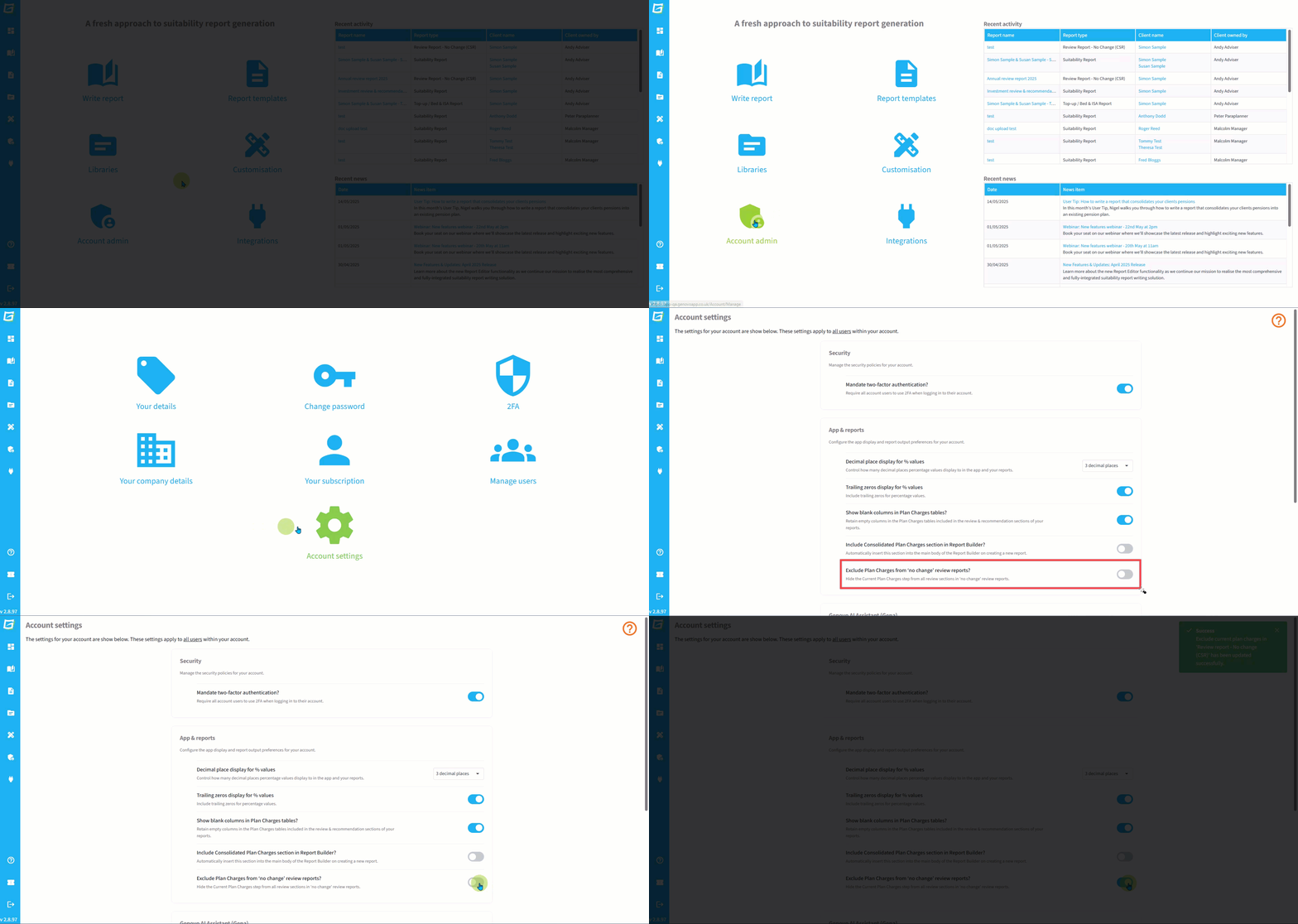
Account Owners and Account Admins can simply select the toggle button under the 'App & reports' category in Account settings, accessed from the Account admin dashboard.
Further info
For further information about how are ex-ante and ex-post charges disclosure is dealt with in Genovo, check out this article.