
As standard, monetary and percentage values always display trailing zeros as standard within Genovoto ensure consistency of output.
- Monetary values will always display to 2 decimal places (dp) and always include trailing zeros. So if you enter 11, 11.1 or 11.11, this will automatically come out as £11.00, £11.10 and £11.11 respectively.
- Percentages display to either 2 or 3 decimal places (with the option setting in Account admin > Account settings). Regardless of the dp setting, percentages include trailing zeros by default.
- If you have 3dp set and you enter 11, 11.1, 11.11 or 11.111, this will come out as 11.000%, 11.100%, 11.110% and 11.111% respectively.
- If you have 2dp set and you enter 11, 11.1, or 11.11, this will come out as 11.00%, 11.10%, and 11.11% respectively.
However, it is possible to configure your account to specify whether trailing zeros show for percentage values. This is a global account setting which Account Owners / Account Admins can configure via Account admin > Account settings. Trailing zeros are set to show by default.
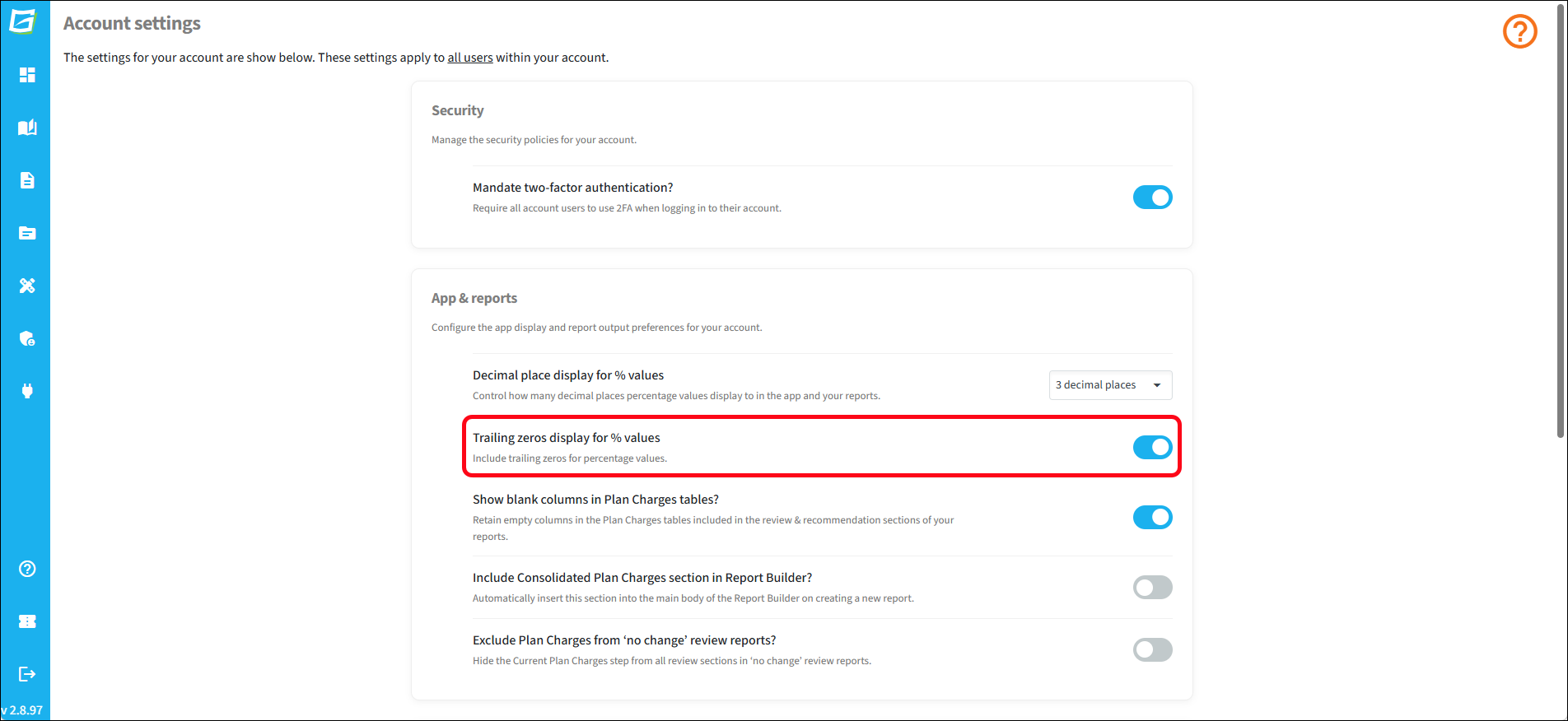
If you deactivate trailing zeros, you can still enter and display percentage values to your chosen decimal place setting, however, no trailing zeros will show.
- If you have 3dp set and you enter 11, 11.1, 11.11 or 11.111, this will come out as 11%, 11.1%, 11.11% and 11.111% respectively.
- If you have 2dp set and you enter 11, 11.1, or 11.11, this will come out as 11%, 11.1%, and 11.11% respectively.
On changing the setting, you may find in existing reports that you need to resave the field for the change in setting to take effect.