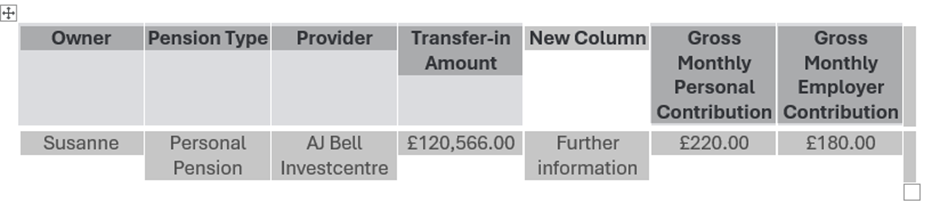
Due to constraints within Microsoft Word, if a user wishes to add a new table or a column into a Genovo generated table within their downloaded report, it will not automatically inherit the table stylings from the Report Theme.
1. To manually apply your Report Theme styling to a new table
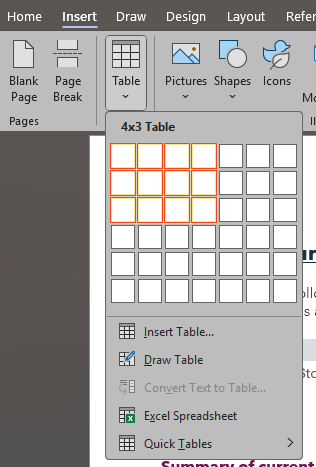
1. Select where on the page that you'd like your table to appear. Then click Insert from the Top Ribbon and then click the Table option.
2. Set the parameters for your table.
3. Once your table has appeared on the page, along the top ribbon you will see the option for Table Design.

4. From here, the first displayed option is the report style that you've selected/created in Genovo, and will apply the correct heading for your table.

2. To manually apply your Report Theme styling to a new column in a Genovo generated table
1. Highlight the table that you wish to add a new column to, select the insert button and choose the column option.
2. With the table still highlighted, follow steps 3 and 4 from section 1 (above).